Ecommerce
AI product photos for Shopify: the full workflow
You connect your store, import the garments, generate on-model photos and push them to each product page with alt text. Here is the workflow from start to finish.
3 min read
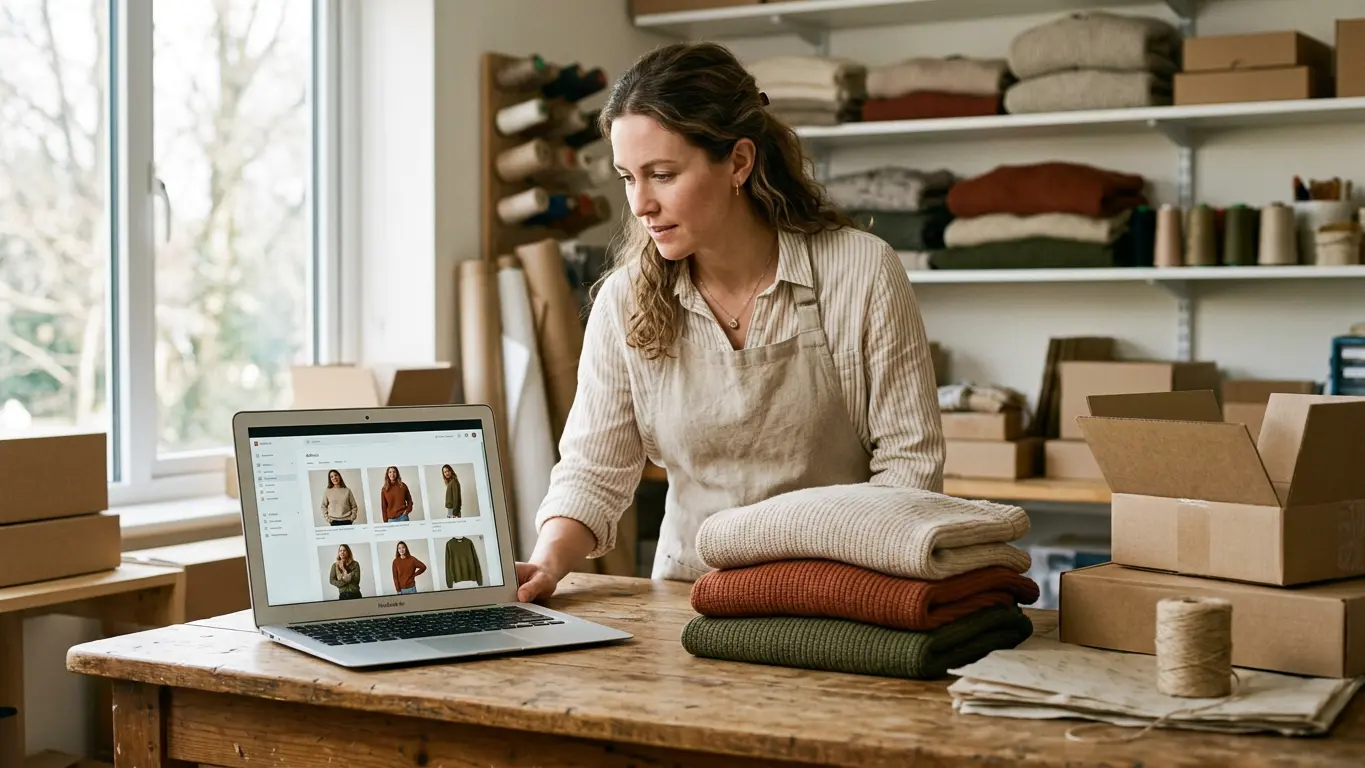
If you sell clothes on Shopify, you know the photo does more selling than the description. AI product photos for Shopify let you show every piece being worn without booking a shoot each time new stock arrives. What slows small stores down usually isn't making the photo. It's everything around it: pulling images out of the admin, sorting them, uploading them back to the right product and writing alt text. Here is the whole workflow with Amondu, from your store and back to it.
What you need before you start
- A Shopify store where you can approve apps.
- A Pro plan or higher on Amondu, which is the one that includes the Shopify connection.
- Photos of your garments flat, on a hanger or on a mannequin, sharp and well lit.
If you don't have an account yet, you can try it first with the 25 free credits and move to Pro when you want to connect the store. Plans are on the pricing page.
Step 1: connect the store and import products
In Integrations you type your store name, something like my-store.myshopify.com, and approve the connection in Shopify. Then you choose how many products to import. The most recently updated come first, and images you've already imported are skipped, so you can run the import again without creating duplicates.
Each imported photo lands in your library linked to its product and variant. That link is what later lets the new photo go back to the right product page without you hunting for it.
Step 2: generate the on-model photos
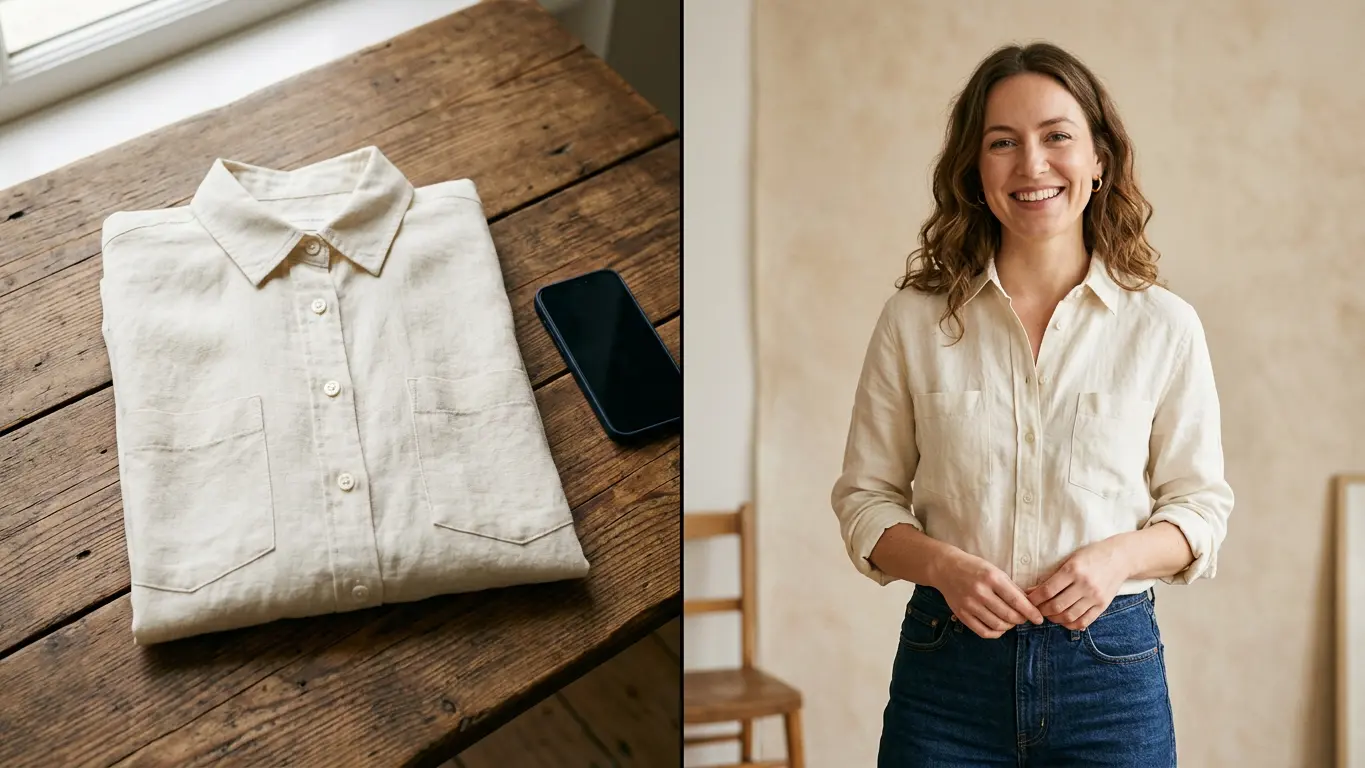
For a single garment, use Garment → Model: you pick the model, the pose and the setting, and get the garment on a person. If you're starting from a flat photo, here's more on how to go from a flat lay to an on-model photo.
For a whole collection, it's easier to do it in one go with Batch shoots. You pick garments, models and settings, and Amondu makes every combination. Four dresses on two models in three settings is 24 photos. You see the exact cost before you launch it, and on the Pro plan a batch can have up to 200 cells.
Run a small test with a single garment first. Once you like the result, lock that model and that setting and launch the rest, so the whole store looks like one shoot.
Step 3: publish to each Shopify product
When the photos are ready, you select them in Outputs and choose "Publish to Shopify". There are two ways to pick where they go. If the photo was made from an imported garment, it goes to its source product and variant on its own. If not, you paste the product link or ID from the Shopify admin.
You can leave the alt text to us too. It's written from the product name, the color, the category, the photo type and the scene. If you'd rather write your own, you can, or leave it empty.
Image size and format
When you download, there's a preset made for Shopify: square, 2048×2048 pixels. It's a practical size for the product gallery because every photo lines up the same on the product page and in collections. If you publish straight from Amondu, the image goes up exactly as you generated it.
What it costs
An on-model photo usually costs 6 credits, and you always see the total before you generate. If a generation fails, the credits go back to your balance, and in a batch you only pay for the images that are delivered. The Pro plan includes 1,200 credits a month. To compare with a traditional shoot, here's what a fashion photoshoot costs.
Frequently asked questions
Do I have to download the photos and upload them to Shopify again?
No. In Outputs you choose "Publish to Shopify" and the images go up to the product page with their alt text.
Which plan do I need to connect Shopify?
The Shopify connection is included from the Pro plan. With the free account you can generate photos and download them.
Do the photos say they were made with AI?
Yes. Each file carries C2PA metadata saying it was made with AI and which steps were used.